
For nail salons · Tiệm nail

Your client has you.
Quen has your back.

Check-ins, appointments, fair turns, and rewards—working together while you work with your client.

Runs in your browser English & Tiếng Việt Use your existing devices
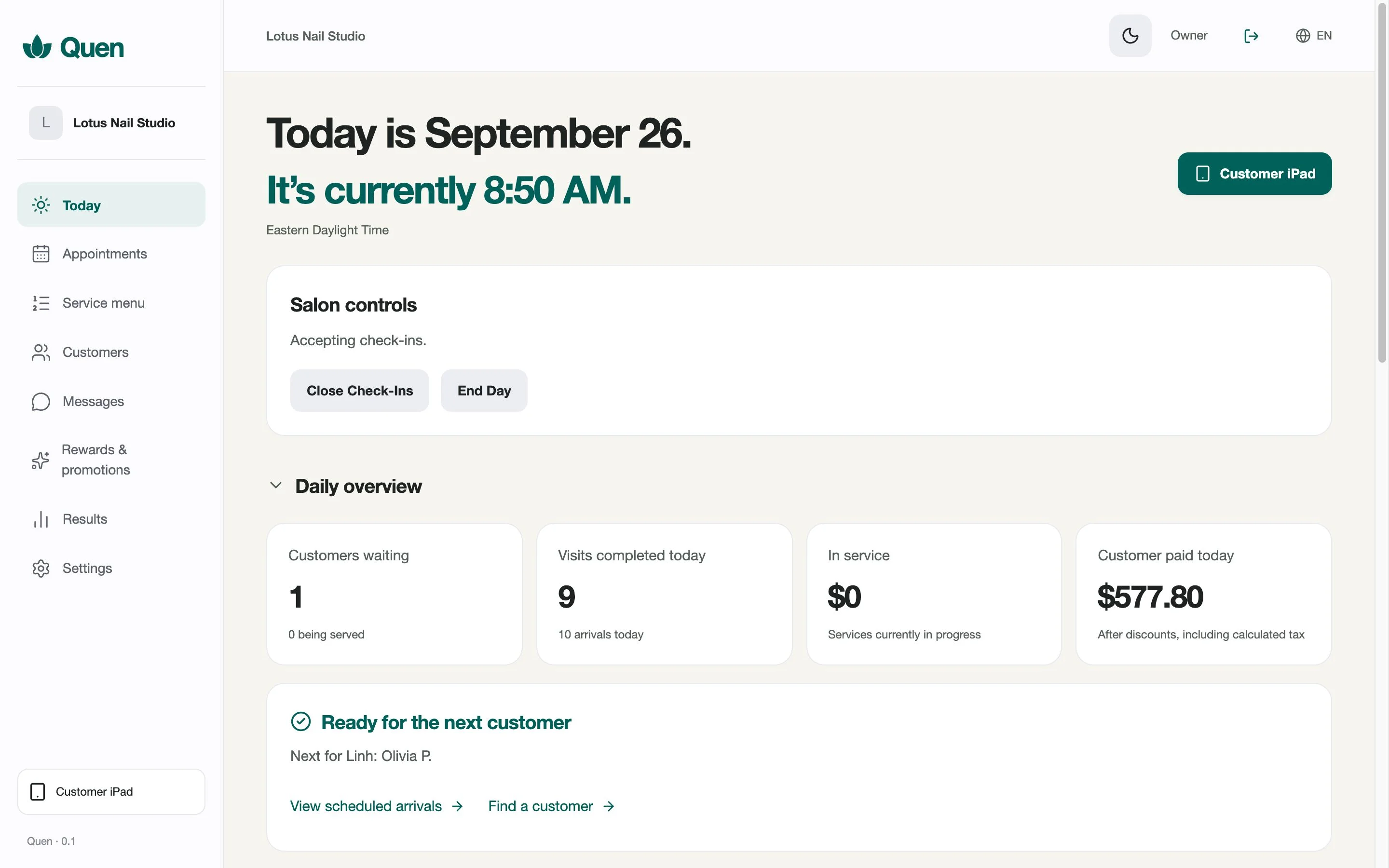
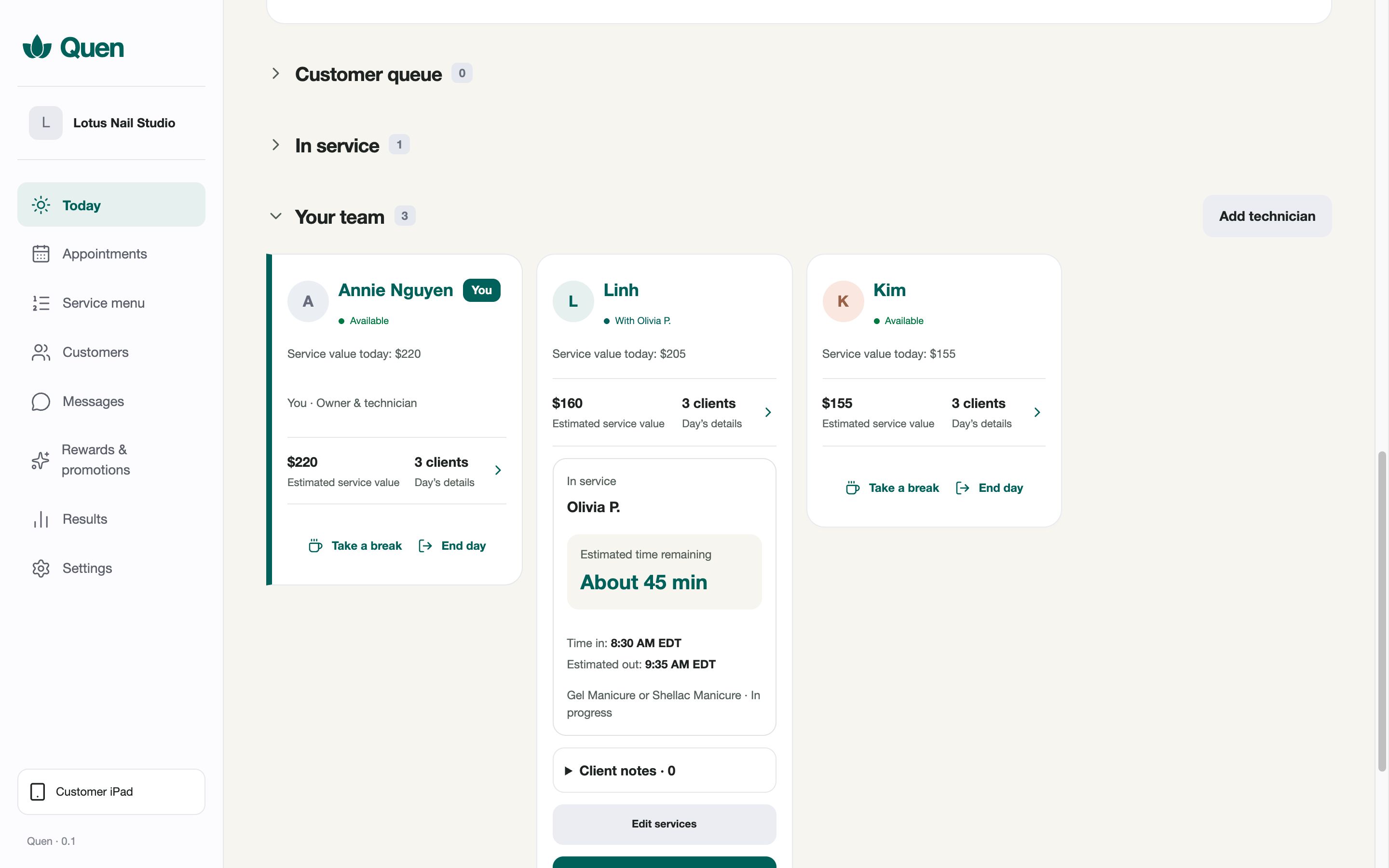
Actual Quen owner dashboard showing the queue and service totals
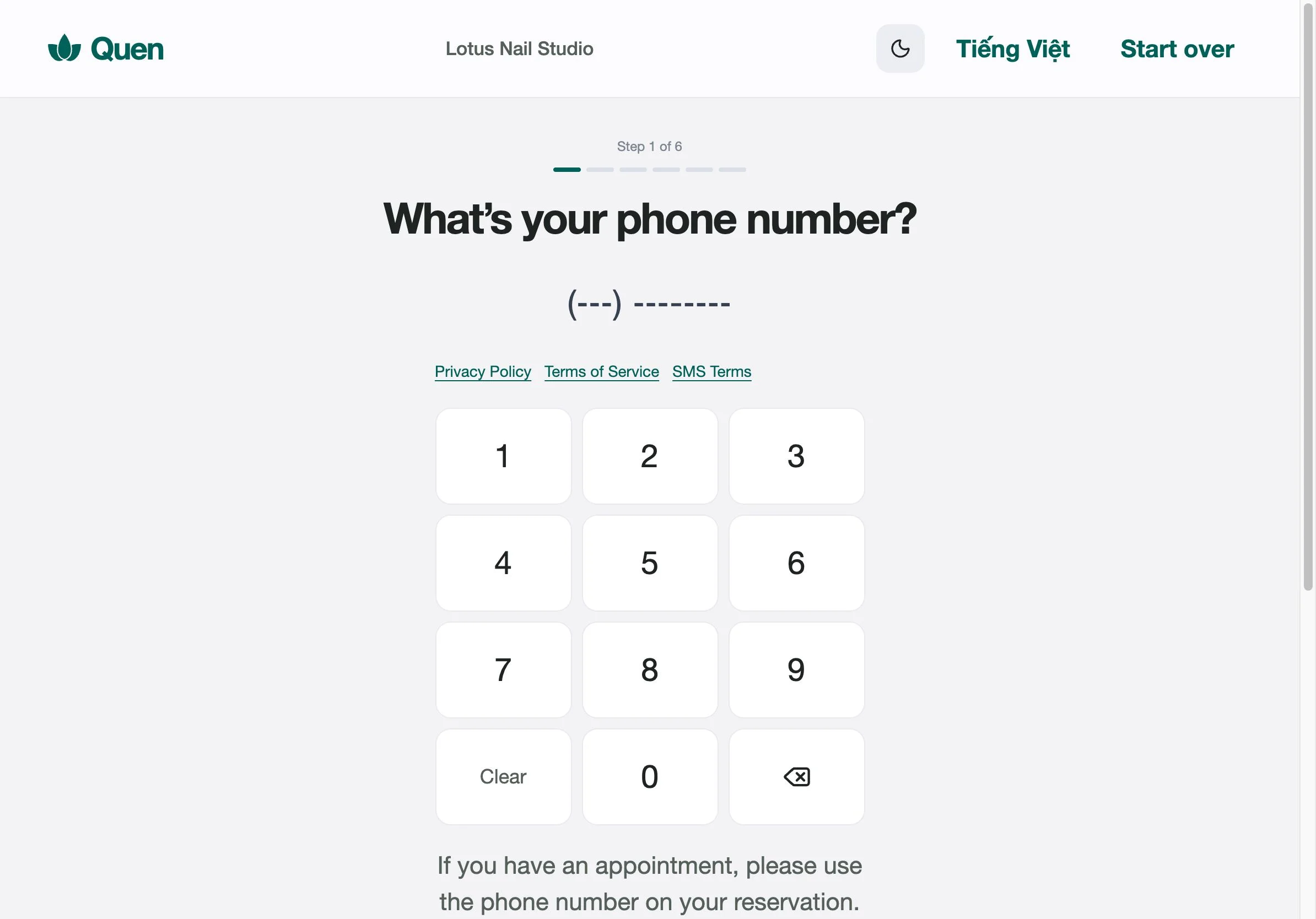
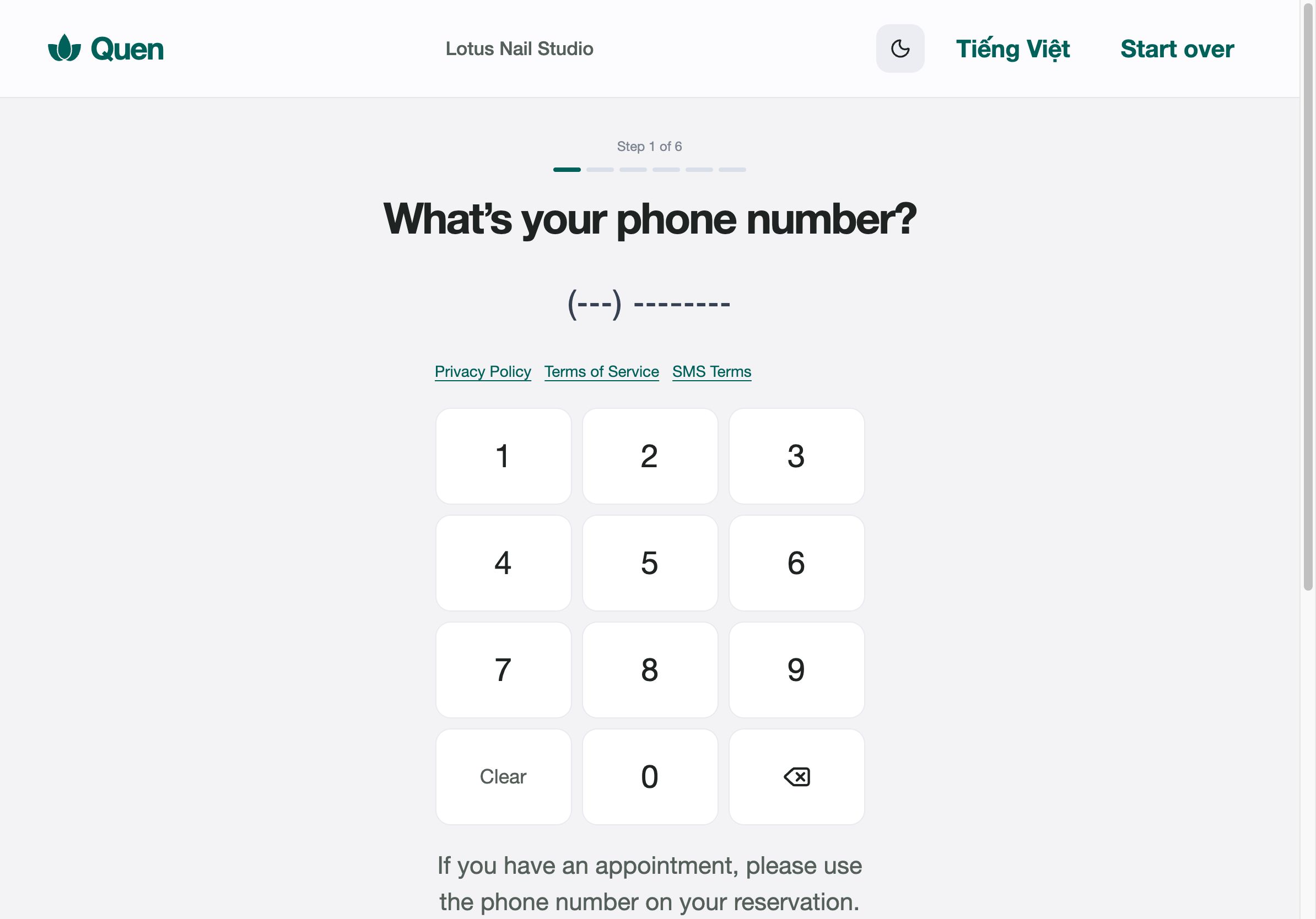
Actual Quen customer check-in confirmation
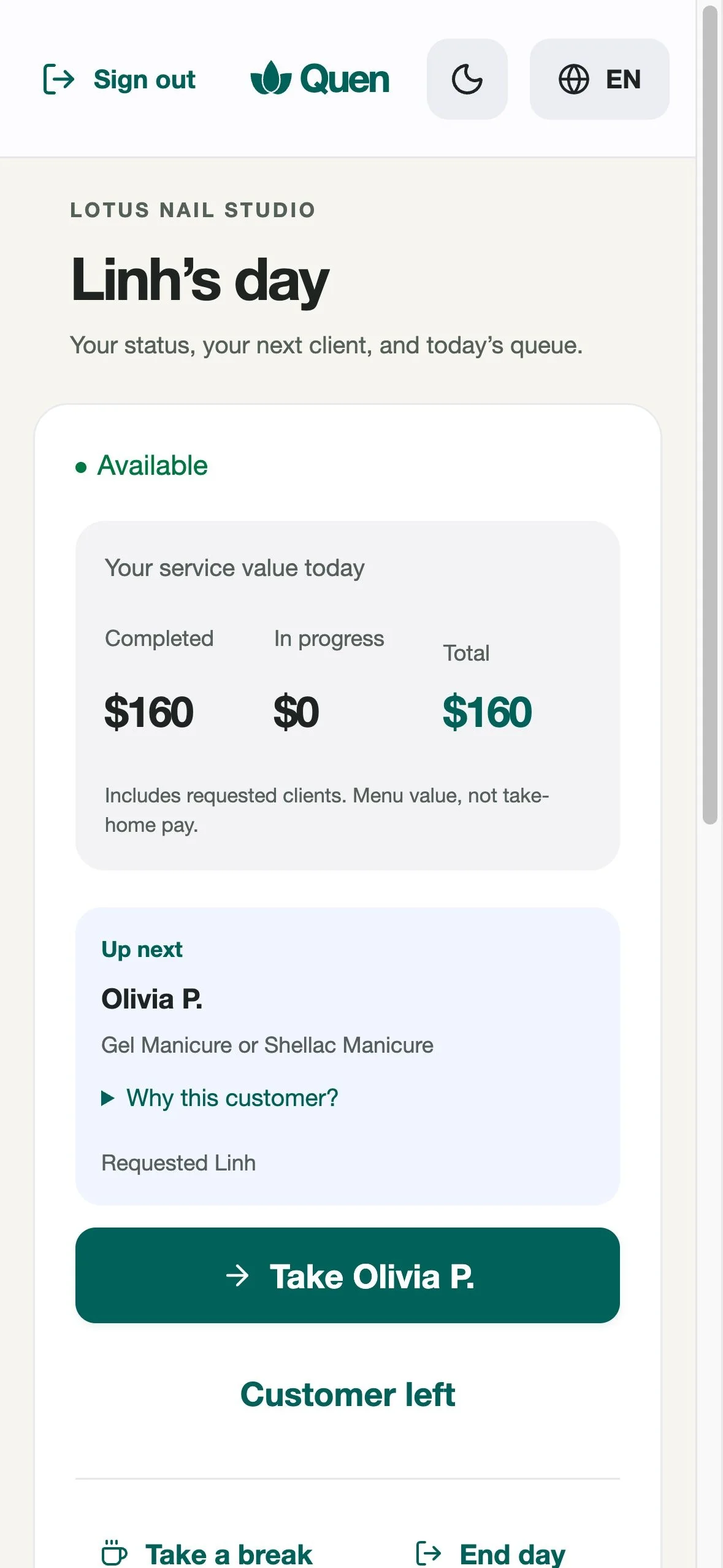
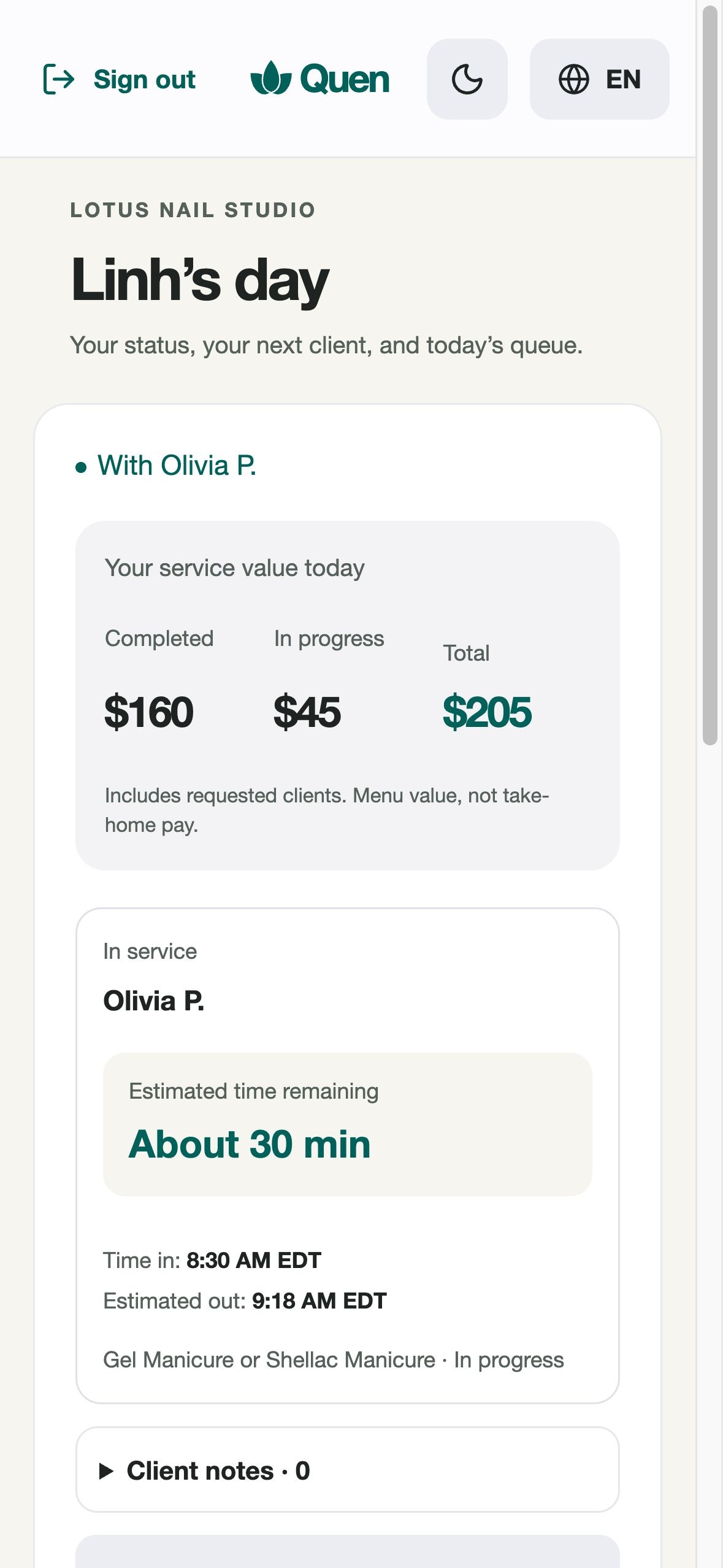
Actual Quen technician screen showing Linh’s next client and service values

Screens from Quen, shown with a sample salon.

Watch Quen in action.

One minute. The whole salon, connected.

You've heard these questions
a thousand times.

Every question pulls someone away from a client. Quen keeps the answers within reach.

“Whose turn is it?”

Fair turns, settled.

Who’s available? Who can do the service? Who has an appointment coming up? Quen keeps track before offering the next client.

“How much longer?”

Customers see their own wait.

An estimated wait, based on the queue and the team working today. Right on the check-in screen.

“What did I get last time?”

Every regular, remembered.

The color, the shape, the little details. Private notes and photos help the next technician pick up where the last visit left off.

“Doesn’t Kim have a 1 o’clock?”

Appointments keep their spot.

A phone number finds the booking. Upcoming appointments are factored into the queue, using the timing rules you set.

One visit, start to finish

From “I’m here”
to “See you next time.”

No clipboard. No shouting across the room. No sticky note on the mirror.

1

She checks herself in

Phone number, service, favorite tech. First-timers add their name and can join VIP.

On the customer iPad ↓
2

Her tech sees who’s next

When it’s her turn, the available, eligible technician can take her. Requests still respect the queue.

On the technician’s phone ↓
3

Plans can change

Add or remove services during the visit. Save private notes and up to five photos for next time.

In the client’s visit ↓
4

Finish the visit

Confirm the services and final amount. Record Customer Paid after collecting payment. Eligible VIP points update with the visit.

Keep your existing card reader ↓
Next time,
they’re already a familiar face.
One salon, three screens

Everyone sees
what they need.

The whole salon, from your station.

See who’s waiting, who’s busy, and what’s coming next—without walking around to ask.

  • Who's waiting, who's with whom, and when they'll finish
  • You're in the rotation too, marked “You”
  • Service totals and recorded payments, together for the day

Their next client, on their own phone.

Technicians see their own service totals. Other technicians’ amounts stay private.

  • Take a client, change services, finish in a few taps
  • Breaks that keep their place in the rotation
  • Private notes and photos for every regular

A check-in that feels like a welcome.

Large buttons guide customers through check-in. Internal notes and technician earnings stay off the customer screen.

  • Walk in or book ahead, on the same iPad
  • Regulars are recognized by phone number
  • Eligible VIP visits earn points
Quen owner dashboard, actual application screenshot
Quen technician phone screen, actual application screenshot
Quen customer phone number keypad, actual application screenshot

Open full-size screenshot

Walk-in turn order

1
Kim
Next eligible technician
Up next
2
Annie
Owner, in the rotation too
3
Linh
Just finished Olivia's request
Request counted
Requests don’t skip the line. A requested technician still serves earlier eligible customers first. Completed work counts toward that technician’s rotation.
Fair turns

Your rules.
Applied to every turn.

Requests, service skills, breaks, and upcoming appointments all affect the next turn. Quen keeps track, so you don’t have to.

  • Only techs who can do the service get offered the client
  • Breaks don't reset or cost anyone a turn
  • Upcoming appointments are protected from long walk-ins
Getting started

Snap your menu. Add your team.
Open the doors.

01

Start with your salon

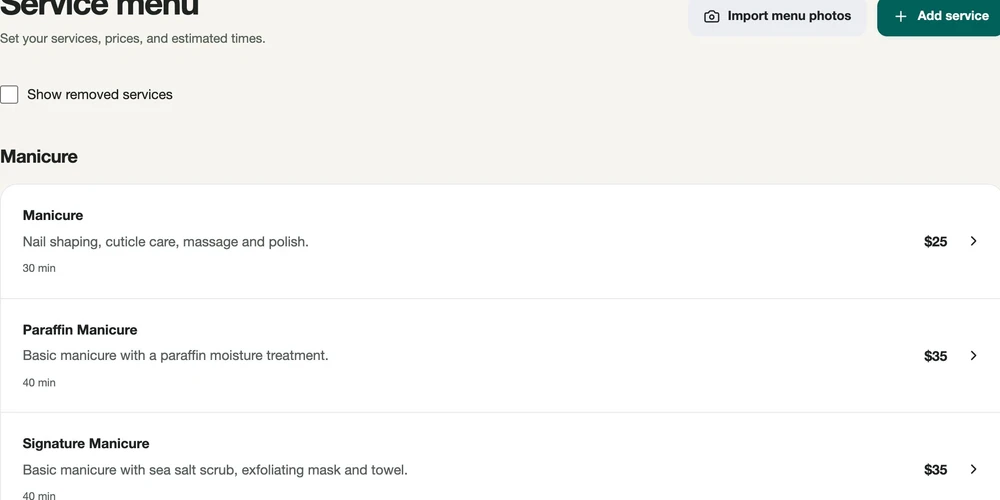
Add your name, address, phone number, and hours. Upload a menu photo, then check the prices and adjust suggested service times.

Service menu in Quen
02

Add your team

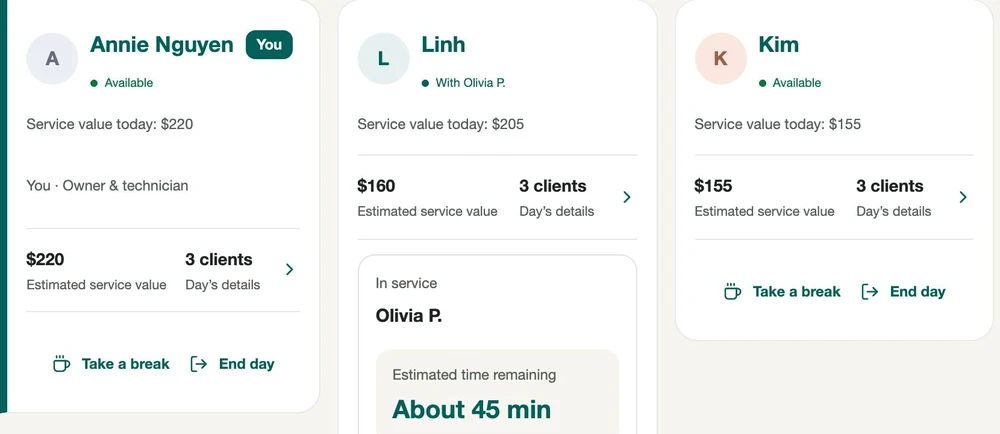
Set up your own technician profile if you take clients. Add your team, their services, and days off.

Technician cards in Quen
03

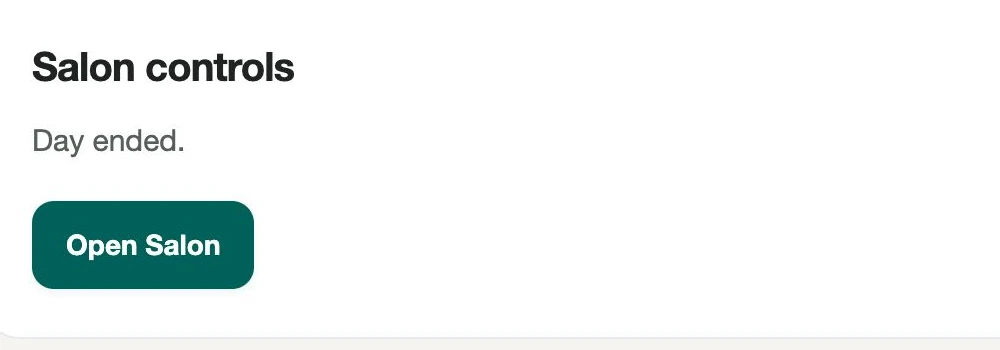
Tap Open Salon

Choose whether to offer VIP rewards. Then open the salon: today’s team starts, and the customer iPad is ready.

Open Salon controls in Quen
Rewards & promotions

Bring them back.
Fill the quiet hours.

Give VIPs something to come back for. Give everyone a reason to choose your slowest hours. You decide what to offer, when it runs, and what customers need to spend.

01 · Make the next visit worth more

A reason to choose your salon again.

VIPs earn points on eligible spending and redeem them on a future visit. Create reward levels that give customers something to work toward. You control how points are earned and what they’re worth.

250 points → $10 off
500 points → $25 off
Example reward levels. Set your own points and amounts.
02 · Give your slow hours an advantage

Tuesday morning needs its own offer.

Saturday is busy. Tuesday morning has empty chairs. Give customers a reason to come when you have room: double points, $5 off $50, or another offer you choose. Limit it to specific days and hours instead of discounting the whole week.

Tuesday · 10 AM–12 PM
Double points for VIPs
Or a minimum-spend discount. Your offer, your schedule.

Your team doesn’t have to keep track in their heads.

Balances stay with the customer. At checkout, the technician sees available rewards, chooses a redemption with the customer, and Quen calculates eligible points and promotions. You can see the discounts recorded for the day.

Still to come: automatic win-back texts and offer suggestions.

/kwɛn/ · familiar. Khách quen is the customer you know by name.
Most salon owners aren’t sitting at a front desk. They’re at a station while the phone rings and the waiting area fills up. Quen puts the day’s moving parts in one place, so they can keep taking care of the person in their chair.
Straight answers

What owners ask us.

Do I need to buy anything?+

Use an iPad for customer check-in, your team’s phones, and a laptop or iPad for the owner view. If you already have those devices, you don’t need dedicated Quen hardware. Quen runs in the browser and needs an internet connection.

Can my techs use it in Vietnamese?+

Yes. Everyone picks their own language, English or Tiếng Việt, and it applies to their own screen.

I’m the owner, and I do nails too. How does that work?+

During setup, choose “I also take clients” and add the services you perform. You’ll have your own technician card, marked “You”, and take turns alongside your team. From the same owner screen, you can accept and finish your clients while keeping an eye on the queue, appointments, and the rest of the salon.

Does Quen take card payments?+

We do not process payments and have no plans to facilitate them. Keep using your existing card reader or payment method. After collecting payment, tap “Customer Paid” in Quen to record the total and update eligible VIP points.

Can Quen send texts to customers?+

VIP members can opt into appointment reminders and marketing or promotional texts from your salon. Joining VIP alone does not sign them up for marketing messages: customers choose whether to receive them and can opt out. Messaging must be activated for your salon before texts can be sent.

How do I get started?+

Request a demo. We’ll walk through your salon’s setup, menu, team, and devices, then plan your rollout with you.

Who can see my numbers?+

Owners see salon totals. Technicians see their own totals. Customer notes and photos stay off the customer iPad. Our Privacy Policy explains how information is used and shared.

What if the internet goes down?+

Quen needs an internet connection. If it drops, keep a temporary written record and enter the updates when service returns. Quen does not currently offer offline check-in or booking.

Meet your salon’s
extra pair of hands.

Tell us about your salon. We’ll call or text within one business day to arrange your personal demo, in English or Tiếng Việt.

Request a demo

By requesting a demo, you ask Quen to call or text about your request. This does not subscribe you to promotions. See our Privacy Policy and Terms.